ChatGPT is the need of the hour today, which can help with multiple tasks. However, can ChatGPT create PowerPoints? Well, the answer is Yes, it can.
From writing a thesis to detailed reports, ChatGPT has become everyone’s go-to companion for every task. With advanced capabilities, the software not only helps to brainstorm ideas but also to write content and generate slides that can be exported into PPT format. Nevertheless, knowing how to do it properly is the key to getting professional-looking and error-free slides.
The same is why, in the forthcoming content, we will discuss a complete step-by-step guide to creating PowerPoints using ChatGPT, while exploring some of these amazing alternatives. Let’s begin.
How to Use ChatGPT to Create a PowerPoint?
Here is a very simple step-by-step guide that will help you create a PowerPoint with ChatGPT.
Step 1: Log in to ChatGPT
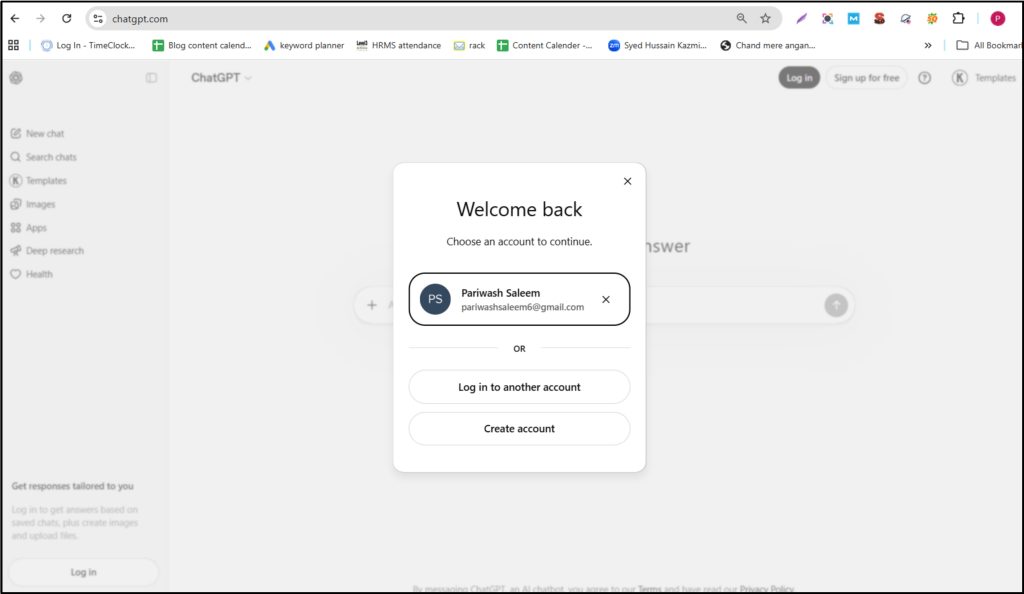
Logging into ChatGPT is very easy. Just reach the search bar, type ChatGPT, enter, and open it. Here is the button “Login”. Click on it. (We recommend logging into your account to use this feature, as this will save your chat history.)
Step 2: Making a Presentation with ChatGPT
Now, you would have a search bar in front of you. It is not only a search bar, but your own personal adviser.
Talk to it like a human. Develop ideas, tiles, or just describe whatever you are thinking of. Try to be detailed but specific while prompting ChatGPT. Do not be vague. Here are the examples of a good and a bad prompt to make a PPT:
- A vague prompt: Create a detailed PowerPoint presentation for me on cats
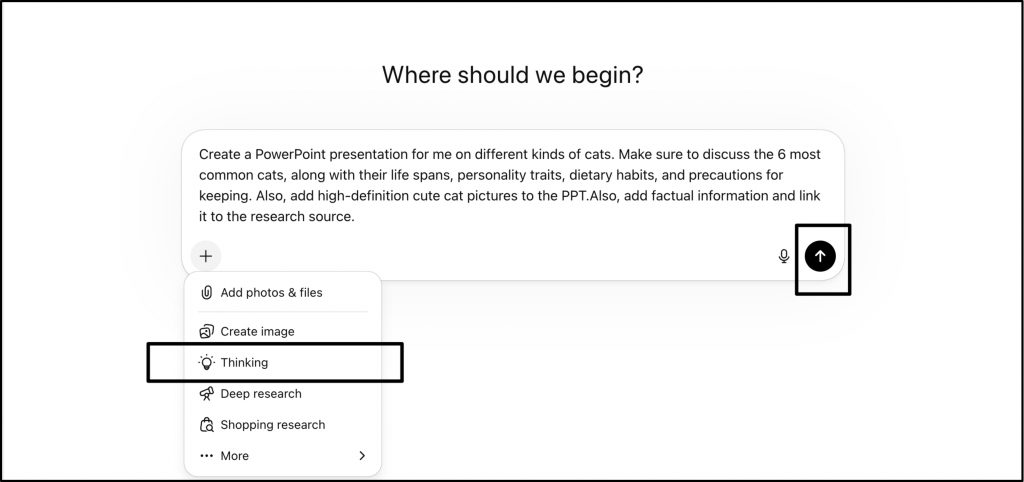
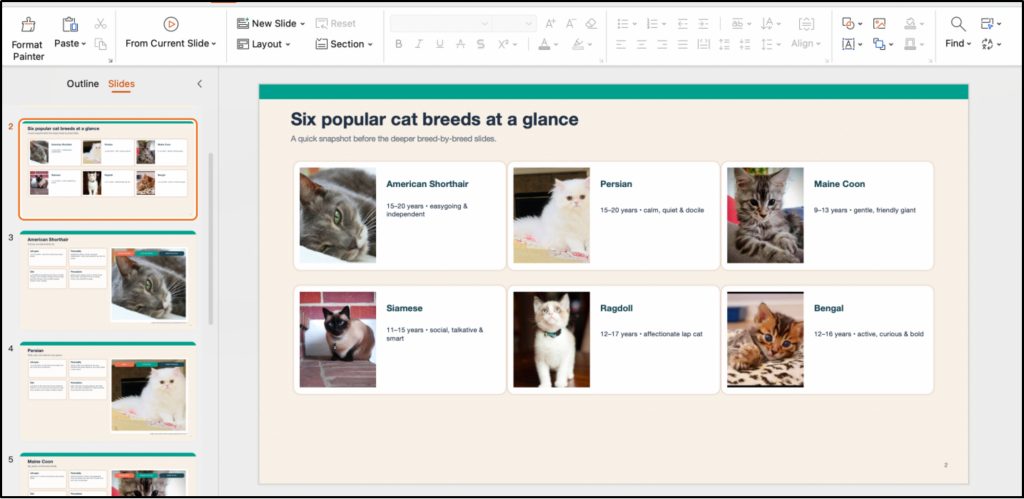
- A clear and specific prompt: Create a PowerPoint presentation for me on different kinds of cats. Make sure to discuss the 6 most popular cats, along with their life spans, personality traits, dietary habits, and precautions for keeping. Also, add high-definition, cute cat pictures to the PPT. Also, add factual information and link it to the research source.
Once you are done with the input, choose “Thinking” and press the “Enter” button.
Step 3: Review
Now it is time for a short wait. ChatGPT takes just several minutes to process. Once done, read it carefully from start to end.
One of the biggest catches when using ChatGPT is data accuracy. Sometimes the software uses fake information and reference links. Hence, make sure to fact-check the data and visit the links to ensure those are real and relevant.
Step 4: Download and Make adjustments
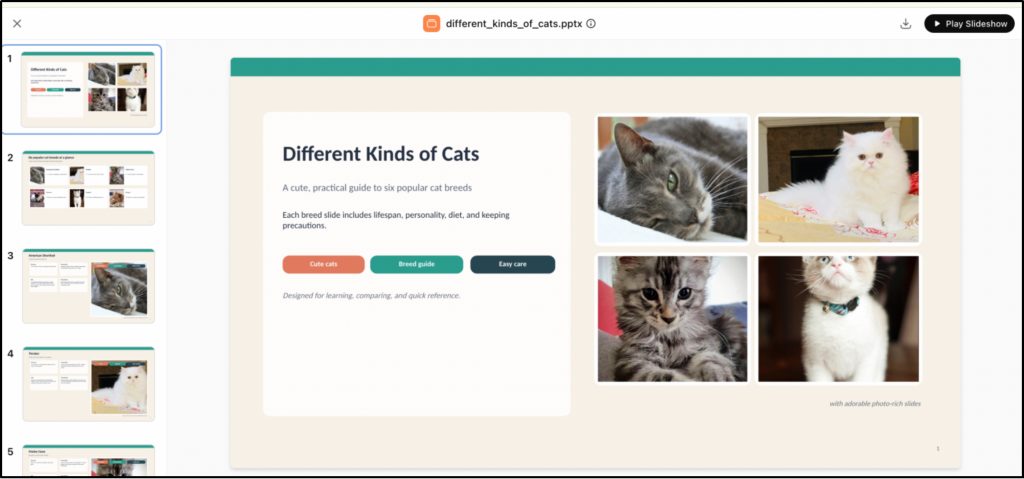
Once you are happy with the results, you can save the file and make as many changes in the content as you like, including adjustments to the format, fonts, and images. Click on the save button and download it to your computer.
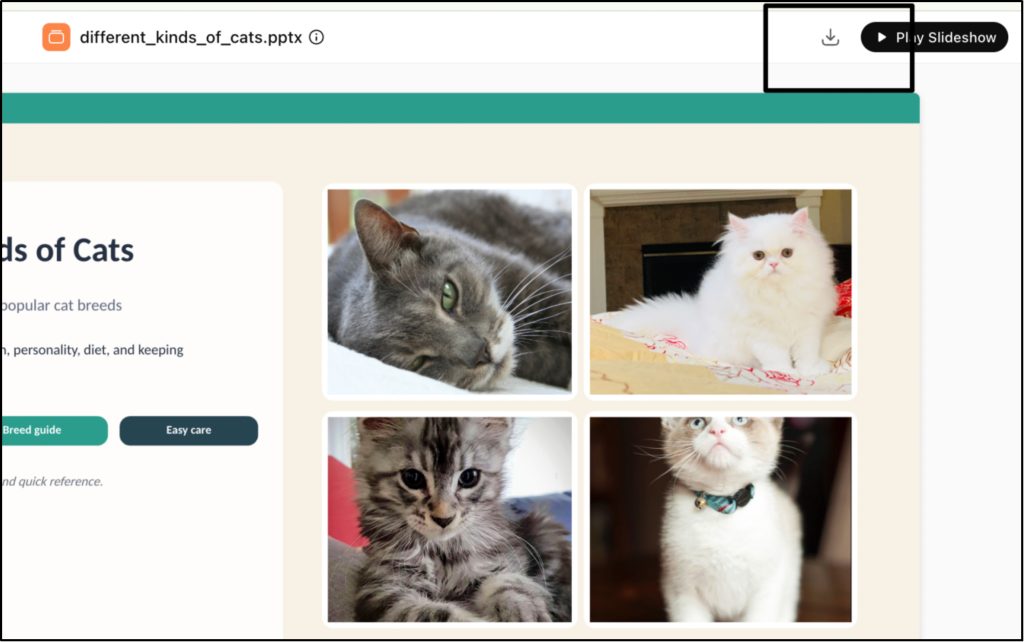
Now, you can open the PPTX file using any tool, like Microsoft PowerPoint, to adjust the content to your preference.
Pros and Cons of Using ChatGPT for Presentations
ChatGPT is a helpful tool when it comes to PPT generation. However, it has some limits as well. Let’s have a look at some of its Pros and Cons for a better understanding.
Pros:
1. Saves Time
Time is money, and everyone should seek tools which help them save it. ChatGPT is one of those. You do not have to write each sentence manually or worry about spelling mistakes. Just give a simple prompt, and the software will do everything from idea generation to creating complete slide decks for you.
2. Easy to Use
ChatGPT is especially designed for beginners. Hence, you do not have to own any professional or technical knowledge to use it. Just type whatever you need in simple words. There is no need to give prompts in any programming language or in any specific format. Additionally, you don’t need any PPT design skills to get started.
3. Works with Any Topic
ChatGPT can help create content for almost any subject. For business, it can handle pitch decks, sales presentations, and team meeting slides. In education, it helps students and teachers with lesson plans, book reports, and class lectures. For personal use, it’s great for birthday celebrations, wedding speeches, or travel plans. No matter what the topic is, you can get a clear and organized presentation.
Cons:
1. No Direct Editing
ChatGPT is helpful for making PowerPoint slides, but it has some downsides. You cannot edit the slides online. You also cannot change the layout, format, or font style inside ChatGPT. It only lets you preview the slides. If you want to make any changes, you need to use other tools to edit the PPT.
2. Possible Errors
ChatGPT does not work through real-time data analysis. It sometimes provides inaccurate and false information, without even notifying you. Hence, you always have to check for facts before using them in any of your professional or academic presentations.
Top 3 ChatGPT Alternatives for Making PPTs
As ChatGPT can not support online editing, here are some of the efficient all-in-one alternatives you can try out.
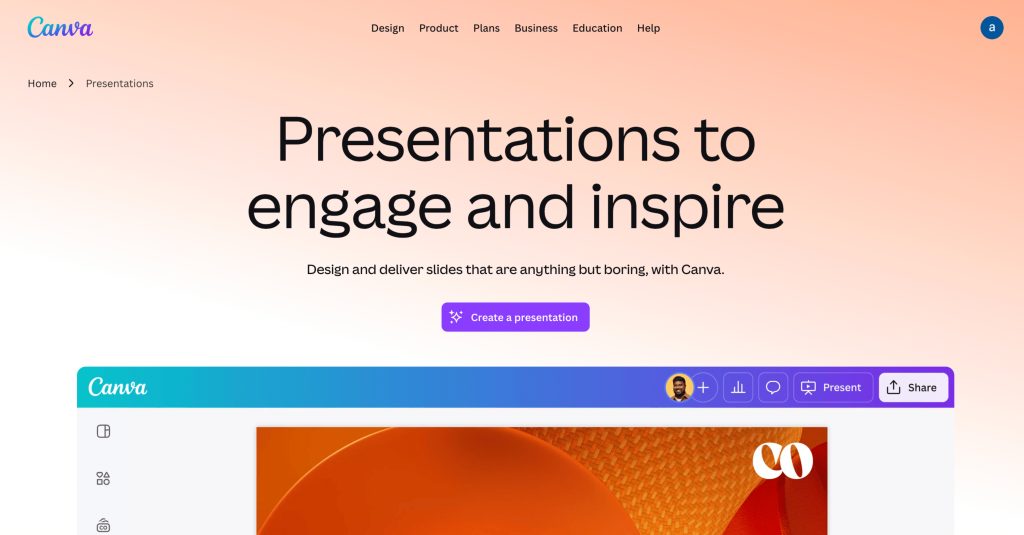
1. Canva Magic Design
Created by Melanie Perkins, Canva is the most popular tool today. It acts as a strong AI tool to make PPT because it combines design and automation all together.
Features
- AI-generated slides
- Drag and drop design
- Templates for every topic
2. Gamma
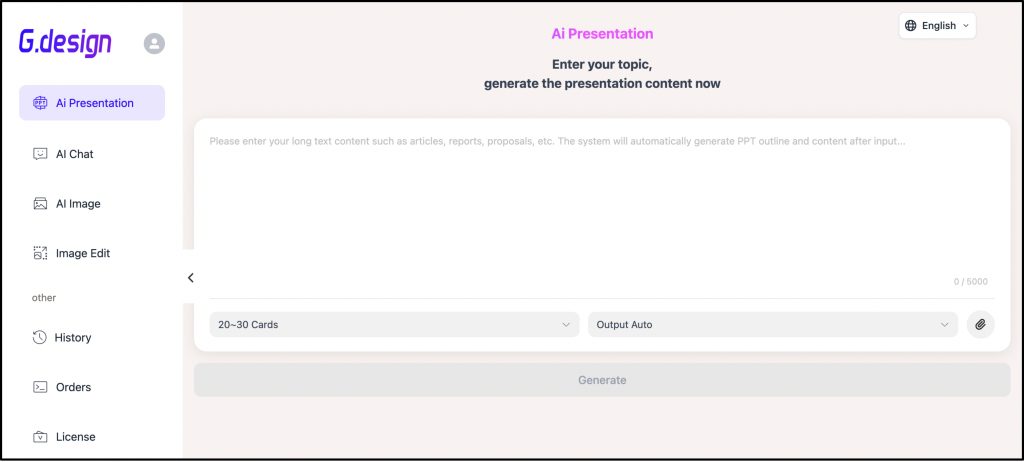
Gamma is a modern AI tool made specifically for presentations. It focuses on turning ideas into slides quickly and clearly.
Features
- Turns text into slides instantly
- Clean layouts
- Interactive presentations
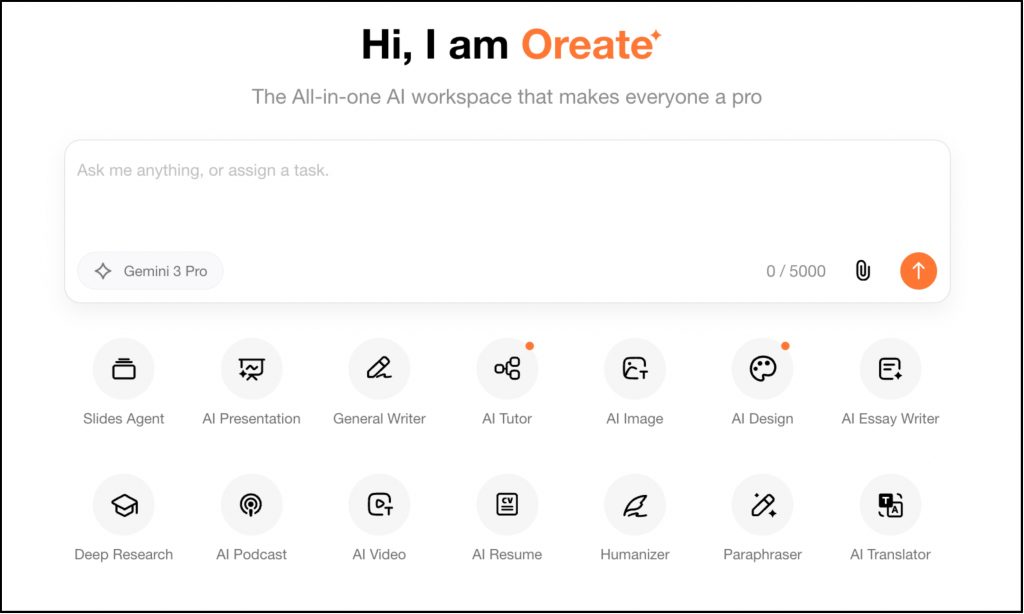
3. Oreate AI (All-in-One AI Workspace)
Last but not least, Oreate AI is a new revolutionary tool that was launched in 2025. Specially designed to create different types of content, it helps you research, write, design, and adjust your PPT under one roof.
What Makes Oreate AI Different?
Unlike other tools, Oreate AI combines everything in one place:
- AI PPT
- AI Image
- AI Video
- AI Writing
- AI Research
- AI Resume
Why Choose Oreate AI for presentation creation?
If you are searching for a complete AI tool to make PPTs, there is no better option to go with than Oreate AI. It gives you lots of ready-made templates to choose from, and you can use any of them with just one click. Just pick a style you like, and your slides are ready for presentation.
Most importantly, unlike ChatGPT, you can directly edit the PPT generated by Oreate AI online—making it easy to fine-tune and add final touches before presenting.
Of course, no matter if you are using ChatGPT or Oreate AI presentation maker, giving a clear prompt is the most important thing to do. Always give clear instructions. For instance, instead of “Make slides”, clearly specify your instructions. You can write “Create a 10-slide presentation with examples on this topic”.
FAQs
1. Can I Use ChatGPT to Create PPTs?
Of course you can. ChatGPT is a very versatile tool which helps you create very good PowerPoint Presentations. However, you cannot edit the slides online inside ChatGPT.
2. Is ChatGPT a good presentation maker?
Yes, ChatGPT is a good presentation maker for writing, planning, and generating. However, it can not help to always include accurate information.
3. What is the best AI tool to make a PPT?
There is a vast range of tools available in the market to generate PPTs. However, most of these tools lack in-depth research. However, Oreate AI is an amazing PPT generator that can help you create slides directly with a single prompt.
Conclusion
Now, you can enjoy a long list of benefits with ChatGPT. But it cannot edit slides directly, and it does not always provide accurate information. Nevertheless, with tools like Oreate AI, you can create an entire PPT with as many slides as you want, with a single click. Give it a try today!